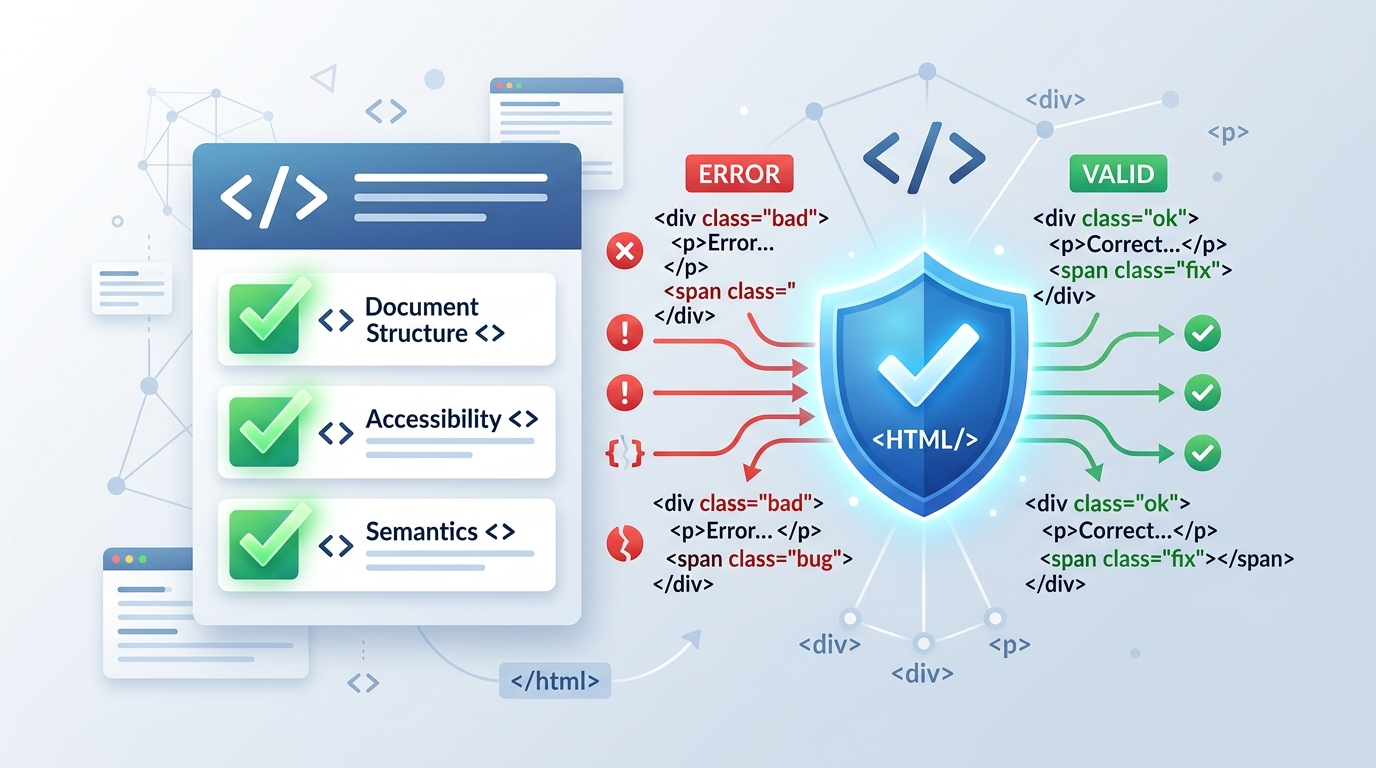
Here's something that surprised me early in my career: browsers are so forgiving of invalid HTML that most errors are completely invisible. Your page renders. Your CSS applies. Your JavaScript runs. Everything looks fine — while underneath, your markup is technically broken.
The problem isn't what you see in the browser. It's what Google's crawler sees, what screen readers interpret, and what happens in edge-case browsers and rendering engines that are less forgiving.
Why HTML Validation Matters in 2024
Let me be direct about what validation actually affects:
- SEO: Google's documentation states it prefers well-structured HTML. Unclosed tags and invalid nesting can confuse how Googlebot parses your page's sections.
- Accessibility: Screen readers follow the DOM structure. Invalid HTML creates an incorrect DOM, which means a screen reader may announce content in the wrong order or skip sections entirely.
- Cross-browser consistency: Chrome's error-recovery algorithm differs from Firefox's differs from Safari's. Invalid HTML leads to each browser making different "best guesses" — which produces subtle cross-browser rendering differences.
- JavaScript reliability: If your DOM structure is wrong,
querySelectorAllandgetElementByIdmay return unexpected results.
How to Validate Your HTML (Free, No Install Needed)
The quickest method: paste your HTML into our HTML Validator. It checks your markup and highlights errors with line numbers and descriptions. Alternatively, the W3C Validator at validator.w3.org accepts URLs of live pages.
Always beautify your HTML first before validating — readable, properly indented code makes errors much easier to locate and fix.
The 7 Most Common HTML Errors (and How to Fix Them)
Error 1: Unclosed Tags
What it looks like:
<div class="container">
  <p>This paragraph has no closing tag.
  <p>Neither does this one.
</div>
Why it matters: Browsers auto-close <p> tags (it's actually optional in HTML5), but many other tags are not self-correcting. An unclosed <div> causes everything after it to become a child of that div, breaking layout.
Fix: Always close every non-void element. Use a beautifier to visually inspect nesting — proper indentation reveals unclosed tags immediately.
Error 2: Missing Alt Attributes on Images
<!-- Wrong -->
<img src="photo.jpg">

<!-- Correct -->
<img src="photo.jpg" alt="A developer writing code at a desk">
Why it matters: This is both a validation error and a WCAG accessibility violation. Screen reader users hear the filename read aloud when alt is missing. Google also uses alt text to understand image content for image search.
Error 3: Duplicate ID Attributes
<!-- Wrong -->
<div id="header">...</div>
<div id="header">...</div>  <!-- Same ID twice! -->
Why it matters: IDs must be unique per page. document.getElementById('header') only ever returns the first match — your JavaScript silently ignores the second element. CSS anchors and scroll targets break unpredictably.
Error 4: Invalid Nesting
<!-- Wrong -->
<p>Some text <div>inside a paragraph</div></p>

<!-- Correct -->
<p>Some text</p>
<div>Next section</div>
Why it matters: Block elements (<div>, <section>, <h1>–<h6>) cannot be children of inline elements (<p>, <span>, <a>). When browsers encounter this, they auto-close the parent element unexpectedly, breaking your intended structure.
Error 5: Missing DOCTYPE Declaration
<!-- Wrong: file starts with <html> directly -->

<!-- Correct -->
<!DOCTYPE html>
<html lang="en">
Why it matters: Without a DOCTYPE, browsers enter "quirks mode" — they emulate old, broken behavior from the 1990s for backward compatibility. This affects CSS box model calculations and many other rendering behaviors.
Error 6: Deprecated HTML Attributes and Tags
<!-- Deprecated -->
<font color="red">Text</font>
<center>Centered content</center>
<b>Bold text</b> (in most contexts)

<!-- Modern replacements -->
<span style="color: red;">Text</span>
<div style="text-align: center;">Centered content</div>
<strong>Bold text with semantic meaning</strong>
Error 7: Missing Language Attribute
<!-- Wrong -->
<html>

<!-- Correct -->
<html lang="en">
Why it matters: The lang attribute tells screen readers which language to use for text-to-speech. It also helps translation tools and search engines understand the page's language. It's a simple one-attribute fix with real accessibility impact.
Validate, Then Fix, Then Compare
My recommended workflow for any HTML cleanup project:
- Beautify the HTML first — indentation reveals structural problems visually
- Run it through the HTML Validator — get a list of errors with line numbers
- Fix the errors in your source file
- Use the HTML Compare tool to diff your original vs. fixed version — confirm only the intended changes were made
Key Takeaways
- Browsers hide most HTML errors — validation catches what visual testing misses
- Invalid HTML hurts SEO, accessibility, and cross-browser consistency
- The 7 most impactful errors: unclosed tags, missing alt text, duplicate IDs, invalid nesting, missing DOCTYPE, deprecated elements, missing lang attribute
- Always beautify before validating — it makes errors much easier to find and fix