I once spent two hours staring at two "identical" HTML templates, convinced they were the same. A junior developer had told me they hadn't changed anything. The bug was real. Pages were rendering differently.
Eventually, I found it: a single missing class="wrapper" on one div. Two hours of visual inspection for one attribute. That day I learned to never compare HTML files with my eyes alone.
When You Actually Need to Compare HTML Files
HTML comparison is more common than you'd think. Here are the scenarios I encounter most often:
- After a CMS update: "Did that WordPress update change my theme's markup?"
- Template merges: Two developers edited the same template — what actually changed?
- Before/after a migration: Did the new system generate the same HTML as the old one?
- A/B testing review: Verify only the intended elements differ between variants
- Client sign-off: "Here's what changed since your last review" — show exactly what moved
- Bug hunting: Something broke after a deploy — find what actually changed in the output HTML
The Problem with Manual HTML Comparison
Human eyes are terrible at finding small differences in structured text because:
- We pattern-match too aggressively — we "see" what we expect to see
- HTML has a lot of visual repetition — closing tags and attributes all look similar
- Whitespace differences are nearly invisible (a tab vs. two spaces looks the same)
- Attribute order differences are semantically irrelevant but visually confusing
Step-by-Step: The Right Way to Compare HTML
Step 1: Beautify Both Files First
This is the most important step and the one most people skip. Before comparing, run both HTML files through the HTML Beautifier with the same indentation settings. This normalizes whitespace differences so your comparison focuses on meaningful changes rather than formatting noise.
Without this step, a file that was re-saved with different whitespace will show hundreds of "changes" that are actually irrelevant. This is called a whitespace diff and it's a productivity killer.
Step 2: Use a Diff Tool
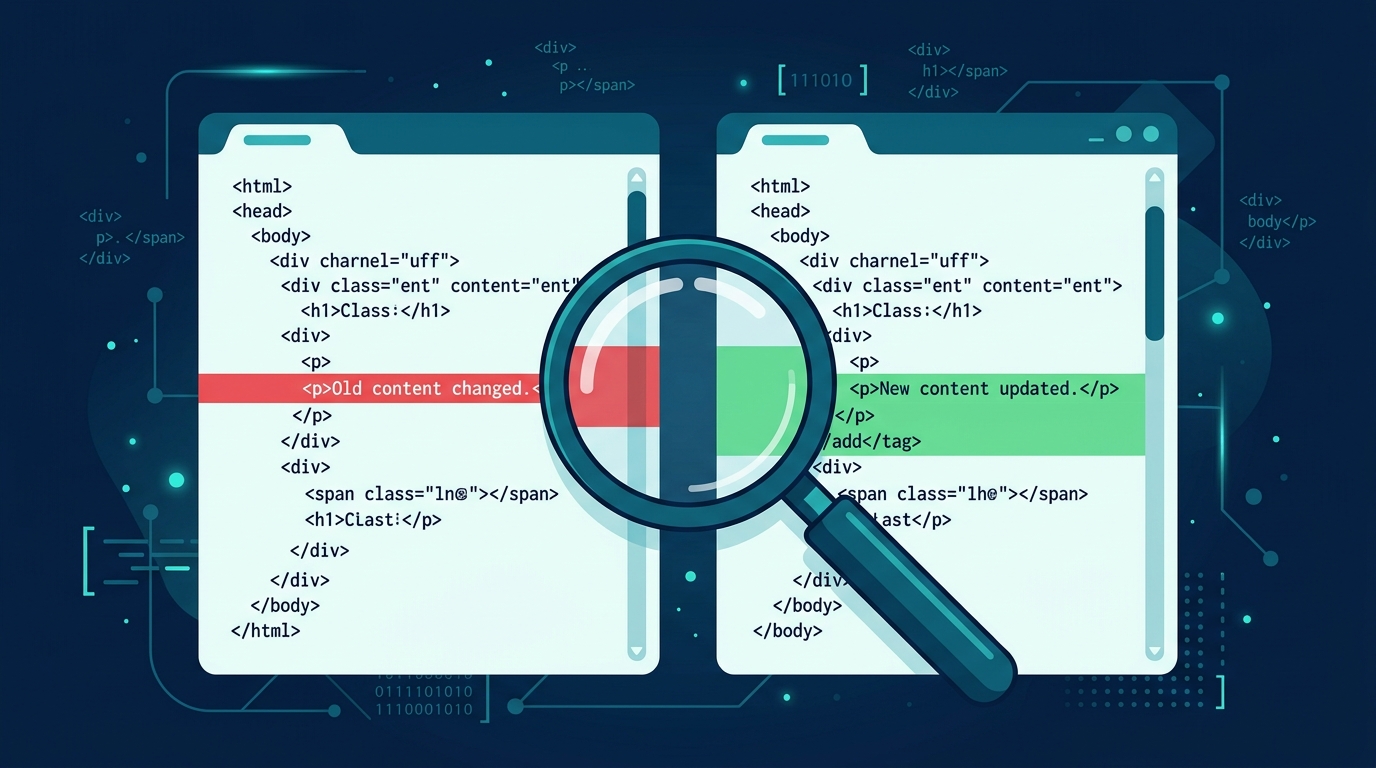
Open our HTML Compare tool, paste both versions, and click Compare. The output shows:
- Green lines — added in the second version
- Red lines — removed from the first version
- Unchanged lines — shown for context
Step 3: Interpret the Diff Intelligently
Not all diffs are equal. Here's how to read them:
- Attribute order changes — functionally irrelevant.
class="a b"vsclass="b a"renders identically. - Whitespace-only diffs — if you forgot to beautify both files first, you'll see these. Re-beautify and re-compare.
- Class name changes — almost always meaningful. A class change affects CSS and JavaScript behavior.
- Content changes — text inside tags. These are the most visible changes but least likely to cause bugs.
- Structural changes — tags added/removed, nesting changed. These are highest impact and hardest to spot manually.
Advanced Technique: Semantic HTML Comparison
Standard text diff treats HTML as plain text — it doesn't understand that <b>text</b> and <strong>text</strong> are semantically related, or that attribute order doesn't matter. For most purposes, this is fine. But when you need to answer "does this HTML render identically?", you need to think about:
- Equivalent elements:
<b>and<strong>both render bold, but have different semantic meaning for screen readers - Attribute equivalence:
style="color:red;"andstyle="color: red;"(with space) are identical to the browser but look different in a text diff - Void elements:
<br>,<br/>, and<br />are all identical — but text diff flags them as different
My approach: use text diff first to find all differences, then manually evaluate which ones are semantically meaningful.
Real-World Workflow: Verifying a CMS Update Didn't Change Your HTML
- Before updating: View Source on your key pages, save the HTML files
- Run the update
- View Source again, save the updated HTML files
- Beautify both versions with the same settings
- Run through the HTML Compare tool
- Review diffs: CMS updates often add/change nonces, meta tags, and script URLs — these are expected. Look for unexpected structural changes.
Git for HTML Version Comparison
If your HTML files are in version control (they should be), Git's built-in diff is excellent:
git diff HEAD~1 HEAD -- index.htmlThis shows changes between the last commit and the current state. Combined with a tool like git difftool or a GUI client, this is often faster than any online tool for files already in your repository.
Key Takeaways
- Never compare HTML visually — always use a diff tool
- Beautify both files with the same settings before comparing to eliminate whitespace noise
- Focus on structural changes first — they have the highest bug risk
- Use the HTML Compare tool for quick, no-setup comparison
- Validate both files with the HTML Validator to confirm neither has errors before comparing
The next time someone says "I didn't change anything," you'll have the tools to verify that in 30 seconds — and the knowledge to explain exactly what did change, with line numbers.